Extract website data to Excel or CSV automatically
September 16, 2026
Excel, Web scraping automation, data export, CSV
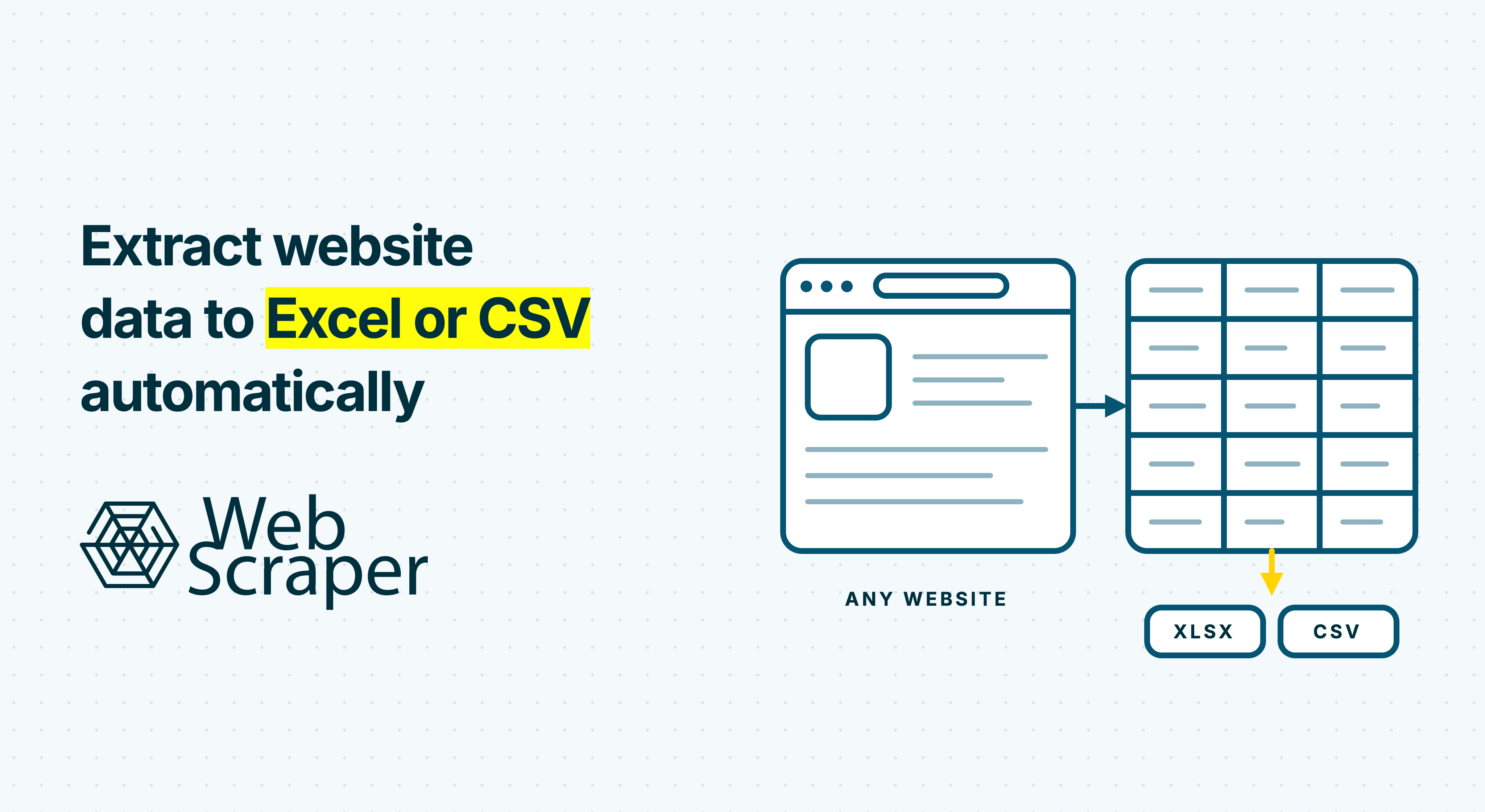
To extract website data to Excel or CSV automatically, define the columns you need, build a scraper that reaches every relevant record, validate the result, and then schedule the completed dataset for delivery. The file format is only the final step. Reliable automation also depends on navigation, consistent field structure, and quality checks.
For a simple public table, Excel Power Query may be enough. For recurring product, property, job, marketplace, or directory data spread across listing and detail pages, a visual scraper with remote execution is usually more practical.
What automatic website-to-spreadsheet extraction involves
Automation has four separate parts:
- Extraction: finding the required records and fields across all relevant pages.
- Transformation: cleaning values and maintaining a stable output schema.
- Execution: running the scraper at the required frequency.
- Delivery: sending the finished dataset to Excel, CSV, or another destination.
A browser extension can automate extraction while still requiring someone to start the run and download the file. A scheduled Cloud job can automate execution, but a completed job does not prove that the dataset is correct. Treat each layer as a separate requirement when selecting a method.
Choose the right extraction method
The simplest method that meets the real requirements is usually the best one.
| Method | Best fit | Main limitation |
|---|---|---|
| Copy and paste | A handful of values needed once | Manual, difficult to repeat, and prone to row or column mistakes |
| Excel Power Query | Recognizable public tables and supported web-hosted files | Not a general browser automation tool for arbitrary scrolling, clicks, or multi-page navigation |
| Website API | A documented interface provides the required data and permitted access | The needed fields, history, or scope may not be available |
| Custom scraper | A specialized workflow requiring full engineering control | Requires development, hosting, monitoring, and maintenance |
| Visual web scraper | Repeated records across listings, pagination, and detail pages | The scraper still needs representative testing and maintenance |
Excel Power Query can connect to supported web sources and refresh imported data. It is a sensible option when Excel recognizes the source and the workflow remains centered on a workbook.
Use a dedicated scraper when collection requires pagination, infinite scrolling, clicks, JavaScript rendering, or navigation from listing pages to individual detail pages. If the website offers a suitable official API, assess that option before scraping.
Before collecting data, check the website's terms and any privacy, copyright, or other legal obligations that apply. Technical access does not establish permission to collect or reuse data.
Define the spreadsheet before building the scraper
Start with the output rather than the page. Decide what one row represents, which fields are required, and how the next system should interpret them.
For a recurring product dataset, a practical starting schema could be:
| Column | Example | Purpose |
|---|---|---|
product_id | 004921 | Matching and deduplication |
product_name | Trail helmet | Human-readable reference |
product_url | Full product URL | Traceability to the source |
price | 79.95 | Numeric comparison |
currency | USD | Prevents unlike prices from being combined |
availability | In stock | Stock monitoring |
scraped_at | Timestamp | Shows when the value was collected |
Keep one consistent record level. If a product has five variants, either make each variant a row or keep the parent product as one row with a defined representation for its variants. Mixing both approaches creates unreliable counts and duplicate-looking records.
Plan Excel-sensitive fields explicitly. Product codes, postal codes, telephone numbers, and long identifiers often need to remain text so Excel does not remove leading zeros or reinterpret them. Dates, currencies, and decimal separators also need one consistent convention.
Decide whether each run should produce:
- A full snapshot: the complete current dataset.
- An incremental dataset: only new or changed records.
Full snapshots are simpler to validate and audit. Incremental workflows require a stable key, historical storage, and comparison logic. Scheduling a new export does not detect changes by itself.
How to extract website data to Excel or CSV with Web Scraper
Web Scraper separates scraper creation from remote automation. Build and test the sitemap in the browser extension first, then move the tested sitemap to Web Scraper Cloud when it needs to run unattended.
1. Build the sitemap on a representative page
Open the target site with the Web Scraper browser extension and choose a start URL that leads directly to the required records. A category, search result, job list, or regional property page is normally more controlled than a homepage.
For repeated listing cards, the AI Sitemap Wizard can map visible fields and attempt to identify pagination or scrolling. Review the generated sitemap because automatic detection does not work on every site. The DevTools and Advanced builders provide more control when custom selectors or interactions are required.
A common listing structure contains:
- An Element selector representing one repeated record.
- Child selectors for fields visible on the listing page.
- A Link selector leading to each detail page.
- Child selectors below that link for detail-page fields.
The guides to scraping listing pages and following links to detail pages show these structures in context.
2. Prove navigation beyond the first page
Correct rows on the first screen do not prove that the scraper reaches the full dataset. Identify how the site exposes additional records:
- numbered pages or a Next link;
- a Load more button;
- infinite scrolling;
- category or location filters;
- tabs, variants, or expandable sections; or
- links from listings to detail pages.
Test at least one record beyond the initial page or viewport. If the workflow depends on scrolling, clicks, or content created by page JavaScript, it requires browser execution. In Web Scraper Cloud, FullJS runs JavaScript, while Fast extracts from returned HTML and cannot run interaction-dependent sitemaps.
3. Validate representative records
Use Element Preview to check which elements a selector matches and Data Preview to inspect the values produced. Then preview and validate the sitemap against cases likely to expose errors:
- a standard and discounted product;
- a record with an optional field missing;
- a later pagination page;
- an alternative detail-page layout;
- content revealed by a click or scroll; and
- a legitimate empty-result page.
Run a limited local scrape and inspect the exported rows, columns, and values. A technically completed job can still omit pages, duplicate records, or fill a price column with challenge-page text.
4. Clean values before delivery
The spreadsheet should not require the same manual cleanup after every run. Fix incorrect extraction in the sitemap, then use Web Scraper Cloud Parser when a correct raw value needs formatting or restructuring.
Typical parser tasks include:
- separating a numeric price from its currency;
- normalizing whitespace;
- extracting part of a string with a regular expression;
- converting UNIX timestamps;
- combining fields through a virtual column; and
- removing helper columns from the final output.
Parser Preview can use up to 100 scraped records. If source values vary considerably across categories or page types, also inspect a representative downloaded sample.
5. Test the sitemap in Cloud
Once the local output is correct, sync or import the sitemap into Web Scraper Cloud. Run a Cloud test with the driver, delays, proxy, and other settings intended for production.
Compare the result with the local test. Review the records and page outcomes, including failed, empty, and no-value pages. Automatic retries can recover some transient failures, but they do not repair changed selectors or an incorrect page state.
6. Automate execution and delivery
There are two main routes:
| Route | How it works | Best for |
|---|---|---|
| Scheduler and Data Export | Cloud runs the sitemap daily, at an interval, or with a custom cron expression, then exports the completed dataset | Recurring no-code delivery |
| Cloud API | Your system starts an existing sitemap and downloads the result as CSV or JSON | Pipelines requiring programmatic control |
Use the Cloud scheduler to select the timing and time zone. Make sure a normal job finishes within the intended interval. If the previous scheduled job is still running, the next run waits rather than increasing the actual output frequency.
Then configure automatic data export. Supported destinations include Google Sheets, Google Drive, Dropbox, Google Cloud, Microsoft Azure, and Amazon S3. Available formats depend on the selected integration.
Automatic export sends the complete dataset after the job finishes. It does not stream rows during the scrape. Confirm that the first scheduled result reaches the correct destination with the expected columns and file behavior before making it part of a downstream process.
The Cloud API starts a sitemap that has already been built and tested. It is not an arbitrary URL-in, spreadsheet-out scraping API.
CSV or XLSX: which format should you use?
Choose according to what consumes the data next.
| Choose CSV when | Choose XLSX when |
|---|---|
| A script, database, or BI tool will ingest the data | People will work with the file directly in Excel |
| You need a simple, portable interchange format | You want a familiar workbook container |
| The dataset may exceed a comfortable spreadsheet workflow | The data fits within an Excel-centered workflow |
| Formatting and formulas belong in a later reporting layer | Users will add workbook features after delivery |
CSV is delimited text. It does not store formulas, colors, multiple worksheets, or Excel formatting. Use a proper CSV parser in automated pipelines because quoted fields can contain commas, quotation marks, and line breaks.
When opening CSV in Excel, use Data > From Text/CSV if dates, leading zeros, or long identifiers must be preserved. Excel can otherwise apply default type detection that changes how values appear.
XLSX is convenient for human review, but worksheet limits still matter. Microsoft documents a maximum of 1,048,576 rows per worksheet and 32,767 characters in one cell. Web Scraper splits XLSX exports larger than 1,000,000 records across worksheets and truncates longer cell values to Excel's cell limit. A CSV file itself is not subject to the worksheet row limit, although importing it into Excel is.
For recurring historical analysis, retain raw exports or load them into a database rather than treating one workbook as the only source of truth.
Make recurring exports trustworthy
An automatic file can arrive on time and still be wrong. Define a valid run before allowing new data to replace the previous dataset.
Useful checks include:
- a minimum expected record count;
- maximum failed- and empty-page percentages;
- a minimum fill rate for required fields;
- duplicate checks on stable identifiers;
- valid ranges for prices or quantities; and
- comparison with the previous successful run.
Web Scraper Cloud data-quality controls can evaluate minimum records, failed and empty pages, and field population. A job may finish technically while failing its quality thresholds, so downstream processing should not treat file arrival as approval.
Keep the last known good export until the replacement passes validation. When a run returns fewer records or empty fields, compare its failed, empty, and no-value pages with a successful run. The guide to diagnosing a 200 response with missing data explains why a successful HTTP response is not a data-quality check.
Common problems and what to check
| Symptom | Likely issue | What to check |
|---|---|---|
| Only the first page is present | Missing pagination or scrolling logic | Test a known record from a later page |
| Rows exist but required values are blank | Optional fields, layout variants, JavaScript timing, or incorrect selectors | Compare varied pages and the selected driver |
| The same records repeat | Pagination overlap, promoted listings, or an unstable key | Use a stable ID and inspect later-page navigation |
| The scheduled file is much smaller | Source change, incomplete navigation, blocks, or timeouts | Compare page outcomes and fill rates with a good run |
| Excel changes dates or IDs | Automatic type detection while opening CSV | Import through Text/CSV and assign affected columns as text |
| The job finished but the output is unusable | Technical completion was mistaken for business validity | Enforce quality thresholds before downstream use |
Frequently asked questions
Can Excel extract website data automatically by itself?
Yes, for compatible sources. Power Query can connect to supported web tables and files and refresh imported data. A dedicated scraper is more suitable when extraction requires pagination, scrolling, clicks, JavaScript execution, or detail-page navigation.
Can Web Scraper export directly to Excel?
The browser extension and Web Scraper Cloud support CSV and XLSX downloads. Automatic export options and formats depend on the connected destination. Cloud API downloads are available as CSV or JSON.
Will each run update the same Excel file?
Not necessarily. Depending on the destination and configuration, a run may replace a dataset, update a connected spreadsheet, or create a new file. Decide whether the workflow needs the latest snapshot, dated historical files, or separate change-detection logic.
Can every website be exported automatically?
No. Authentication, access controls, anti-bot systems, regional differences, and frequent layout changes can prevent reliable collection. Social platforms, LinkedIn, and large behind-login projects are not the default fit for this workflow. Test the target source before depending on a recurring export.
How often should the data be refreshed?
Match the schedule to the decision the data supports and the source's actual rate of change. Prices or availability may justify frequent collection, while a directory may need only daily or weekly snapshots. Normal job duration must also fit the schedule.
Build the reliable workflow first
Define the schema, prove that the sitemap reaches every required page, validate varied records, and inspect a real export. Only then add parsing, scheduling, and automatic delivery.
Build and test the sitemap with the Web Scraper browser extension, then use Web Scraper Cloud when the same extraction needs to run and deliver data without an open browser.