How to find where a website gets its data
August 31, 2026
embedded JSON, Fetch and XHR, web scraping, website data, Chrome DevTools
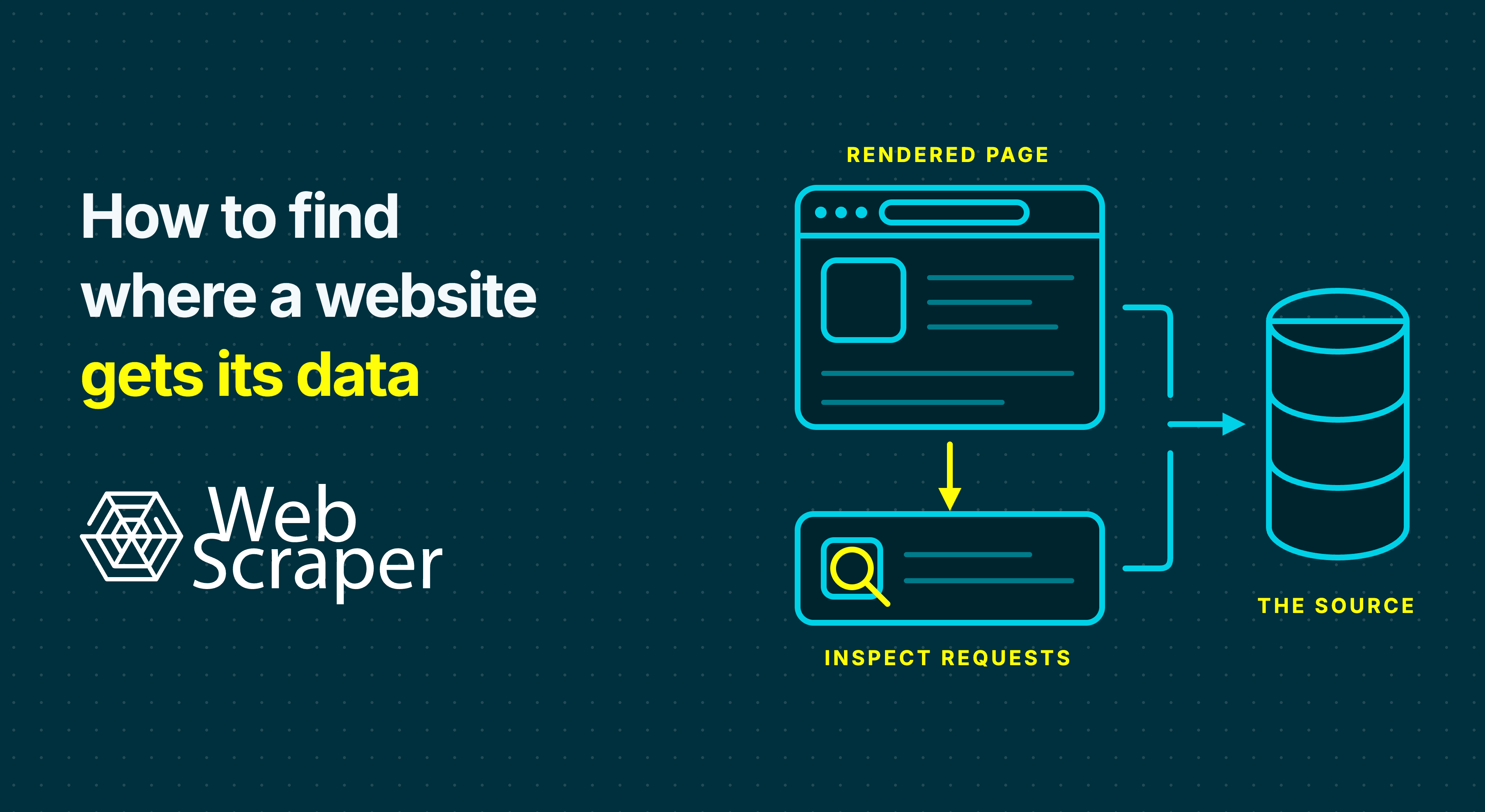
To find where a website gets its data, trace one distinctive value through the main document, embedded JSON, background requests and the live page after any required interaction. This reveals the simplest extraction route that can reproduce the data reliably.
DevTools can show how data reaches the browser. It cannot reveal the website's hidden upstream database or prove where the information originally came from. The practical goal is to identify a complete, repeatable browser-visible source for the records you need.
Start with the record you need
Do not begin by asking whether the website is “dynamic”. Define the intended output first.
For an e-commerce project, one record might represent one product variation with its SKU, name, selected size and colour, current price, currency, availability, source URL and collection time.
Choose one representative record and a distinctive value to trace. A full SKU such as TRAIL-842-BLK-42 is better than $79.00, which may also occur in recommendations, menus or unrelated products.
The aim is not merely to find one matching value. The chosen route must reproduce all required records, fields, page states and discovery or pagination paths.
Know the delivery layers and page states
One page may use several data sources at once.
| Layer or state | What it means | Where to inspect it |
|---|---|---|
| Main document HTML | The server returned the value with the navigation response | Network document response |
| Embedded JSON | Structured data or application state was included inside the document | Document response and script elements |
| Fetch, XHR or GraphQL response | The browser requested the value after receiving the document | Network panel |
| Live DOM | JavaScript inserted, removed or changed the value | Elements panel |
| Interaction-dependent state | A click, selection or scroll was needed to create the correct data state | Network and Elements before and after the action |
Classify page templates separately. A category page may require scrolling while its product detail pages return every required field in their initial HTML.
Capture a complete page load
Open the target page in Chrome, open Developer Tools and select Network. DevTools records requests only while it is open, so reload the page before drawing conclusions.
Enable Preserve log when a navigation would clear earlier requests. Use Disable cache only when testing a fresh load, and clear the log before testing one interaction so the resulting request is easier to isolate.
Select the main request with the Doc or document type and open Response. Search for the distinctive value. The main document is usually near the top of the request list, but confirm it using the request URL and type.
If the value is present, inspect whether it appears in selectable HTML, an attribute, JSON-LD, another JSON script block or serialised application state.
Also check whether the document contains every required field, record and navigation link. Finding one price in the response does not make raw-HTML extraction sufficient if JavaScript is still required to discover the remaining products.
In the hypothetical product example, suppose TRAIL-842-BLK-42 is absent from the initial document. That rules out normal raw HTML for this value, but it does not yet tell us whether the SKU exists in embedded state, a later response or only the live DOM.
Inspect embedded JSON without assuming it is complete
Use the document response, View Page Source or DevTools global Search to look for the target value in initial resources. Global Search finds text in loaded resources, but it does not search Network headers, payloads or response bodies. Network Search, used in the next step, has a different scope.
Embedded data may look like this:
<script type="application/ld+json">
{
  "@type": "Product",
  "sku": "TRAIL-842-BLK-42",
  "name": "Trail running shoe"
}
</script>
JSON-LD and application state can provide clean IDs, prices, categories and image URLs. Before choosing them as the source, ask:
- Does it include every required record, field and page state?
- Does the structure remain consistent across representative pages?
- Is parsing it more maintainable than selecting stable HTML or DOM elements?
JSON-LD may describe a canonical product or default offer while the page displays a location-specific price, live availability or selected variant. Large application-state objects may also contain recommendations, cached records and interface settings. Treat embedded JSON as a candidate source, not automatically as the best one.
Compare the document response with the live DOM
Open Elements and search for the same value. Elements represents the current DOM, which JavaScript may have changed after the original document was parsed.
| In document response | In live DOM | Likely interpretation |
|---|---|---|
| Yes | Yes | The server supplied the value, although JavaScript may have moved or reformatted it |
| No | Yes | JavaScript or a later response inserted the value |
| Yes | No | The value may be metadata, initial state or content removed during rendering |
| No | No | Check background responses, required interactions, formatting differences, frames or whether the intended page arrived |
Do not confuse an element with a ready value. A .price element can exist while still empty, showing a placeholder or displaying the default variation. Trace the required value and surrounding record state, not merely the container.
For the underlying rendering concepts, see how JavaScript-rendered content affects web scraping.
Use Network Search to find supporting responses
If the value is not in the document response, return to Network. With the panel focused, use Command+F on macOS or Control+F on Windows and Linux. Network Search checks request headers, payloads and responses and opens a match in the relevant request and tab.
Search for the SKU or listing ID first, then a stable fragment of the product name if necessary. Avoid common prices, numbers or currency symbols.
You can narrow the request list with Fetch/XHR, but do not assume all useful data uses that type. For each plausible request, inspect:
- Headers: request URL, method, status and content type;
- Payload: query parameters, form data or JSON request body;
- Response: returned records and their surrounding structure;
- Initiator: the script or action that caused the request; and
- Timing: whether extraction might occur before the response completes.
Check record arrays, stable IDs, totals, variant relationships, pagination inputs, cursors and the condition indicating that no more results remain.
Recognise GraphQL operations
GraphQL requests may share one endpoint, so the URL alone is often uninformative. Open Payload and inspect fields such as operationName, query, variables and any persisted-query identifier.
{
  "operationName": "ProductDetails",
  "query": "query ProductDetails($sku: ID!) { ... }",
  "variables": {
    "sku": "TRAIL-842-BLK-42"
  }
}
Applications may use persisted hashes or batched operations, so a readable query is not guaranteed. Inspect the response for records, pagination and errors. Never replay a mutation as a discovery test: it may create, update or delete data.
Trigger one interaction at a time
If the target value has not appeared, clear the Network log and perform one relevant action, such as selecting a size, applying a filter or loading another result batch.
For each action, determine whether it:
- revealed content already present;
- changed the DOM using embedded state;
- triggered a background request;
- navigated to a reproducible URL; or
- changed session state without changing the URL.
Record the action, the resulting request or DOM change, and the condition proving the new state was ready. A selected size, SKU, price and availability should agree. For Load more or infinite scroll, record counts, append-versus-replace behaviour, any cursor or token and the stopping condition.
Returning to the example, suppose selecting size 42 triggers a GraphQL query whose response contains TRAIL-842-BLK-42, its price and stock state. The SKU then appears in Elements. This establishes both the source and the interaction required to produce the correct record.
Web Scraper provides test sites for practising pagination, Load more and infinite-scroll workflows without depending on a changing commercial target.
Test whether a structured request is reproducible
Chrome can copy a request as cURL or Fetch, but test only appropriate read operations. Never replay a request that could create, update, delete, purchase or submit data.
Protect credentials. Do not paste session cookies or Authorization headers into documentation, support tickets or ordinary logs. Even sanitised HAR exports may retain sensitive query strings, bodies or other headers.
A copied request may depend on a session cookie, temporary token, earlier navigation step, location state or signed payload. Reconstructing that state can be more fragile than reproducing the browser workflow.
Finding JSON does not make an endpoint a documented public API. Compare it with a suitable official interface where one exists, as explained in web scraping versus an API. Technical discoverability also does not establish permission; review the access conditions, data and intended use before production.
Choose the extraction method from the evidence
| Evidence | Recommended starting point | Main production check |
|---|---|---|
| Required fields and discovery links exist in normal initial HTML | Direct HTTP extraction or Web Scraper Fast | Confirm coverage across layouts and later pages |
| Complete data exists in stable embedded JSON | Parse the block or extract an equivalent visible representation | Confirm variants, state and pagination are complete |
| A suitable official API supplies the data | Use the official API | Verify access, field coverage, freshness and limits |
| A reproducible background response contains complete data | Consider direct retrieval | Review stability, session dependencies and appropriate use |
| JavaScript inserts the required values into the DOM | Browser rendering or Web Scraper FullJS | Wait for the required values and state, not only a load event |
| Clicks, scrolling or selections create the required state | Browser automation or Web Scraper FullJS | Define every action, record relationship and stopping rule |
| Only some templates require a browser | Separate HTTP and browser routes, sitemaps or jobs | Keep validation and provenance consistent across routes |
Prefer the least complex appropriate source that repeatedly produces the complete dataset. A clean JSON response is not the better route if it omits variants, depends on expiring tokens or has no reliable pagination path.
In the example, FullJS may be more maintainable if the variation response depends on short-lived state but the page reliably renders the correct values. A stable, permitted and complete structured interface could justify direct retrieval instead.
For a broader runtime comparison, see browser automation versus HTTP scraping.
Apply the decision in Web Scraper
Build and test the sitemap in the free browser extension against representative pages, then choose the Cloud driver from the evidence.
- Fast extracts raw HTML without executing page JavaScript. Use it when the response contains every required field and navigation link.
- FullJS executes JavaScript and supports rendered or interaction-dependent workflows.
Fast cannot run scrolling, Element Click, Website State Setup, click-once or click-multiple pagination, or script-derived pagination links. Those workflows require FullJS. Use the Element Click selector for controls and variations and the Pagination selector for result traversal.
If embedded data is the chosen source, Web Scraper's HTML selector can extract a selected element's inner HTML, while its Text selector ignores script contents. Turning a nested application-state object into records may require parsing or downstream processing.
Web Scraper does not directly convert Fetch, XHR or GraphQL responses into records. If a response is never represented in HTML or the DOM, use a suitable official interface or permitted custom workflow. The Cloud API launches an existing sitemap; it is not an arbitrary URL-in JSON endpoint.
Large behind-login projects and unsupported interaction patterns require separate evaluation rather than assuming FullJS will reproduce every application state.
Validate the complete dataset
Finding one source is useful only if the resulting dataset is correct.
Coverage
Confirm that all intended categories, detail pages and pagination batches were reached, using a trustworthy count or controlled sample.
Completeness
Measure required-field population and investigate whether empty values are legitimate or caused by another layout, missing interaction or source.
Identity
Use stable IDs and check whether recommendations, pagination overlap or repeated state transitions create duplicates.
State accuracy
Confirm that currency, location, variation and availability match the intended state. Preserve source URLs and collection times and compare representative rows with the source.
If the value is absent everywhere checked, another delivery mechanism such as a WebSocket may be involved. Before expanding the investigation, verify that the intended page and state arrived using the 200 OK but no data diagnostic.
Record the decision for each page template
Before building the full workflow, document the required page state, where each field first appears, any actions or requests involved, how later pages are discovered and whether the route depends on session state. Then record the chosen extraction method and the checks that will detect missing or incorrect data.
Create the smallest sitemap or request workflow that produces one complete record from the correct state. Test it across representative pages, validate the first output and only then increase the scope or schedule recurring collection in Web Scraper Cloud.