Why your scraper sees different prices than your browser
October 28, 2026
price monitoring, e-commerce data, data quality, scraping troubleshooting, browser state
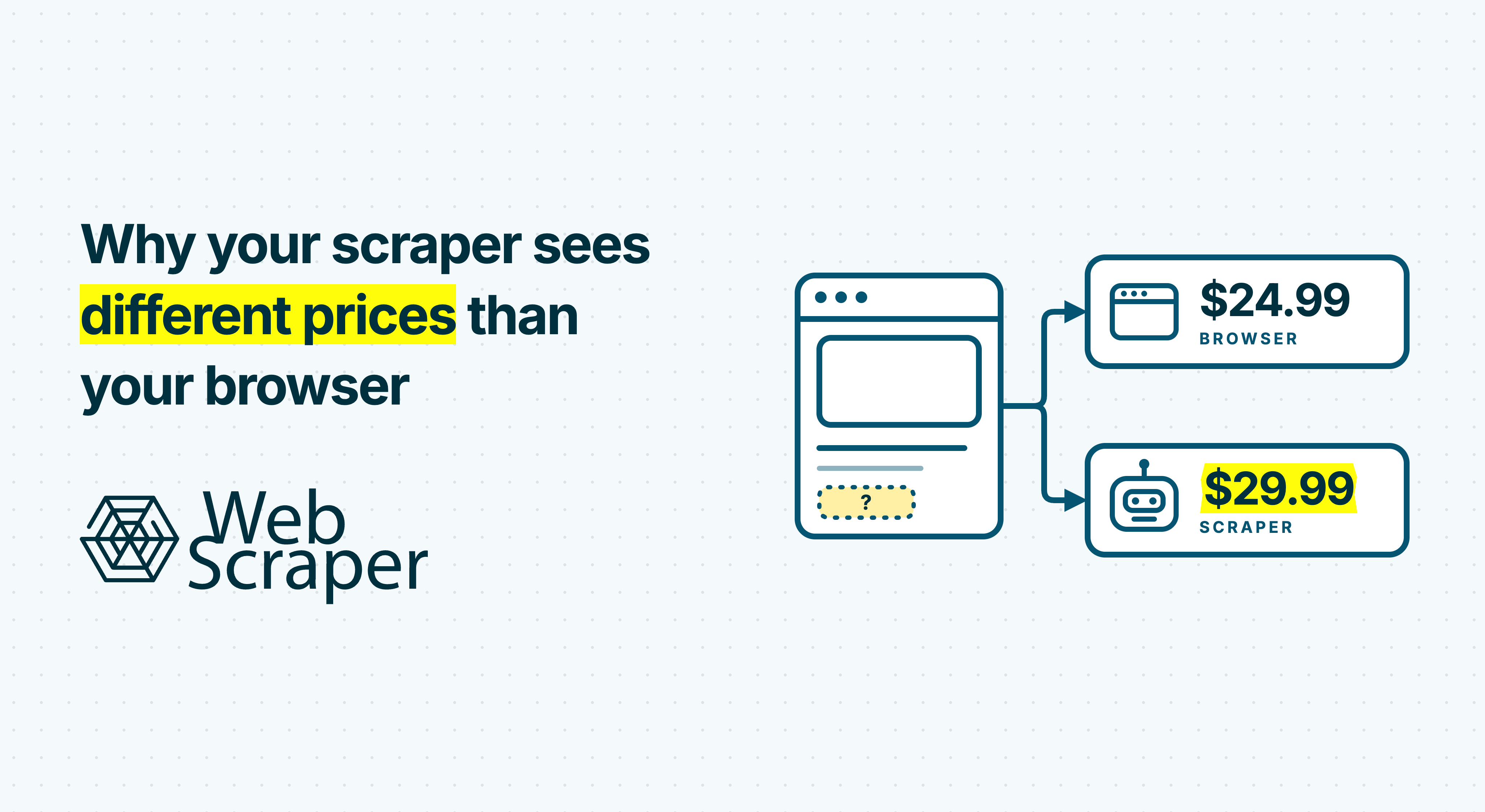
Your scraper can return a different price because it receives a different offer, extracts the wrong price from the page, or changes a correct value during processing. Location, saved preferences, login state and selected variants can all affect the comparison.
Start with one mismatched product and find where the two results first diverge. That tells you what to fix before you change proxies, selectors or delays across an entire catalogue.
Find where the prices first disagree
Trace the price from the page received by the scraper through to the final report.
| Checkpoint | What to compare | What a difference suggests |
|---|---|---|
| Scraper's source at extraction | Product, selected variant, seller, market and displayed price | Different page state, representation or observation time |
| Raw extracted field | Exact text and the element it came from | Wrong selector, record scope or extraction timing |
| Parsed or exported value | Raw text beside the numeric amount and currency | Transformation or import error |
| Final report | Stored observation beside the reported value | Stale data, an incorrect join, conversion or aggregation |
If the scraper's source agrees with the intended browser offer, check extraction and processing first. If the source itself differs, investigate rendering and page state.
Save the input and final URLs, collection time, raw value and returned-page evidence where available. Compare with a fresh browser observation close to the scrape. A tab left open since yesterday is a poor reference for today's price.
Confirm that both numbers describe the same offer
A shared product URL is insufficient. Match the actual variant or SKU, size, colour, capacity, pack quantity, condition and seller relevant to your comparison. A listing card may show a starting price while the detail page has a specific option selected.
Shopify, for example, supports variant-specific links and instructs theme developers to update the price and option controls for the selected variant. A generic product link can fall back to a default variant. Other storefronts have their own behaviour.
Read the price label, too. A public sale price, crossed-out reference price, member price, subscription price, unit price and instalment amount have different meanings. A CSS class containing price is not a particularly demanding specification.
Write down the target offer before changing the scraper:
The public one-off purchase price for the blue 500 ml variant, sold by retailer X, for delivery to postcode Y, in EUR, with the displayed tax treatment recorded.
Keep conditional discounts separate unless the comparison explicitly includes them. If you need delivered cost, collect shipping and relevant conditions so both totals cover the same charges.
Inspect the source, selector and timing
An HTML response and a rendered page can contain plausible prices for different states. Trace the intended value before deciding which representation to extract.
In Chrome, open DevTools before reloading the product page. In Network, select the main document and inspect Response. Search for a distinctive product or variant identifier and its associated price. Then inspect the live price container in Elements. If selecting an option updates it, clear the network log and repeat that action to isolate the supporting request. Chrome records network activity while DevTools is open.
Check the exact element matched by your selector. Does it belong to the main product, another seller or a recommendation? Is it the active price or a reference price? Test discounted and non-discounted layouts: the first matching amount may change meaning between them.
Embedded JSON needs the same scrutiny. Google's merchant markup supports active, crossed-out and member prices within an offer. Selecting the first price property is therefore an unreliable offer-selection rule.
When a variant changes, verify its identifier, selected option, price and availability together. A new size label can appear before its price finishes updating. In custom browser code, wait with a timeout for evidence that the intended variant's update has completed. Waiting only for the number to change is insufficient: two variants can cost the same.
The guide to finding where a website gets its data covers the wider investigation across HTML, embedded data, supporting responses and the live page.
Compare stored state, login and location
If the scraper receives a different offer from your browser, compare the session and regional settings.
Cookies can preserve sign-in and cart state, while local storage can retain application data across browser sessions. Your everyday browser may carry preferences that an automated run does not share.
Record the original state, then open the URL in a fresh browser profile. Stay logged out and select the same product options, destination and store. If that view matches the scraper, session-dependent state becomes a useful lead.
A fresh profile changes several inputs at once, so a match does not establish which setting caused the difference or prove that browsing history affects the price. Follow up by changing one known setting at a time and repeating the observation.
Chrome exposes cookies under Application > Storage > Cookies and local storage under Application > Storage > Local Storage. Inspect relevant settings without posting live cookie values or authentication tokens into support tickets. Clearing cookies alone does not clear local storage.
Check location separately: network country, selected storefront, delivery postcode, store and currency can disagree. A German proxy does not establish that the page selected the German market. EUR alone is weak evidence because several markets share it. Shopify supports country/currency context and business-buyer pricing. Those are explicit platform mechanisms for returning different prices for one product.
Tax display can also differ by market. Shopify supports including or excluding tax based on the customer's country. Check the retailer's displayed labels before treating a difference as an extraction error or applying a percentage adjustment.
Record the state the page actually shows separately from the settings you requested. Leave unverified state unknown. For broader regional collection, use the geo-targeted scraping guide.
Run a small controlled comparison
Consider a hypothetical clothing shop. The scraper returns €69 while your browser shows €79. The product page defaults to size S; your usual browser remembers size L and an active membership.
You repeat these tests close together, holding seller, market, delivery destination and purchase type constant:
| Test | Selected size | Customer state | Displayed price |
|---|---|---|---|
| Original browser | L | Member | €79 |
| Fresh browser profile | L | Logged out | €89 |
| Same fresh profile | S | Logged out | €69 |
| Scraper's default page | S | Logged out | €69 |
In this example, variant selection and customer eligibility both affect the price. The scraper captured the default size S public offer; the browser showed the size L member offer.
For a public-price comparison of size L, the target is €89. Select L, verify its identifier and recheck the logged-out price. Reproducing the personal €79 view would answer a different question.
After the corrected run returns €89 for size L, test discounted products, unavailable sizes and other relevant layouts before applying the fix across the catalogue.
Check parsing and the final destination
If the raw field matches the page but the final amount differs, inspect transformations and import settings.
For a source known to use dots for thousands and commas for decimals, 1.299,00 € should become amount 1299.00 with currency EUR. Removing punctuation indiscriminately can change the scale. Keep the original text beside the parsed amount and an explicit currency code; $ alone does not identify the currency.
Test sale, range, unit-price and missing-value inputs. A missing price should remain missing rather than become zero. Web Scraper Parser post-processes extracted values; fix the sitemap when the wrong offer was extracted.
If identity, state and processing agree but the mismatch remains, revisit observation times and caching. Chrome's Disable cache option tests browser-cache behaviour. It does not reset cookies or establish that upstream caches were bypassed. Repeat the controlled observation. A remaining difference needs more evidence before you can attribute it to personalisation or bot deception.
Apply and validate the fix in Web Scraper
Build and test the sitemap locally, then validate a small Cloud run separately. A working local selector does not establish the remote page's selected variant, customer eligibility or location.
- Collect evidence alongside the amount. Include the variant or SKU, seller where relevant, currency, price condition and visible location marker. These are fields you configure, not context automatically attached to every price.
- Reproduce required page-wide settings. Website State Setup supports preliminary actions such as selecting a location or currency. Its sequence runs when
Perform when not found selectorhas no match. Choose a selector proving the specific required state, rather than merely the presence of a location widget. - Use the appropriate driver and interactions. FullJS executes JavaScript and supports interaction-dependent workflows. Fast reads returned HTML without page JavaScript and cannot run sitemaps containing Website State Setup or Element Click selectors.
- Verify update timing. Use Data preview and the relevant page-load or interaction delay when dependent content arrives later. Web Scraper's sitemap workflow uses configured delays; custom condition-based waits described earlier are a separate coding approach. Extra delay cannot correct the wrong variant or price label.
- Repeat the corrected run. Confirm that Cloud has the intended sitemap version. Check observed state after navigation and on a fresh run, then compare raw and processed values before scheduling the wider collection.
Use sign-in automation only where collection complies with the site's terms or you have explicit written permission. For public-price monitoring, use a defined logged-out offer as the benchmark.
Data-quality controls can check record counts, failed or empty pages and field population. Add your own validation for offer consistency. A fully populated price column can still describe the wrong variants.
Keep the next mismatch explainable
Retain the source URL, observation time, raw price and the context that changes its meaning. For an unresolved case, provide one failing URL, the expected offer, actual raw output, relevant settings and redacted page evidence where available. Include the collection time so the comparison can account for later price changes.
Start with one product in the Web Scraper browser extension. Once its selected offer and output agree, validate the same sitemap in Cloud before expanding the run.