Empty pages, consent screens and bot challenges: telling them apart
August 10, 2026
Empty scraping results, web scraping troubleshooting, consent screen web scraping, empty page web scraping, bot challenge detection
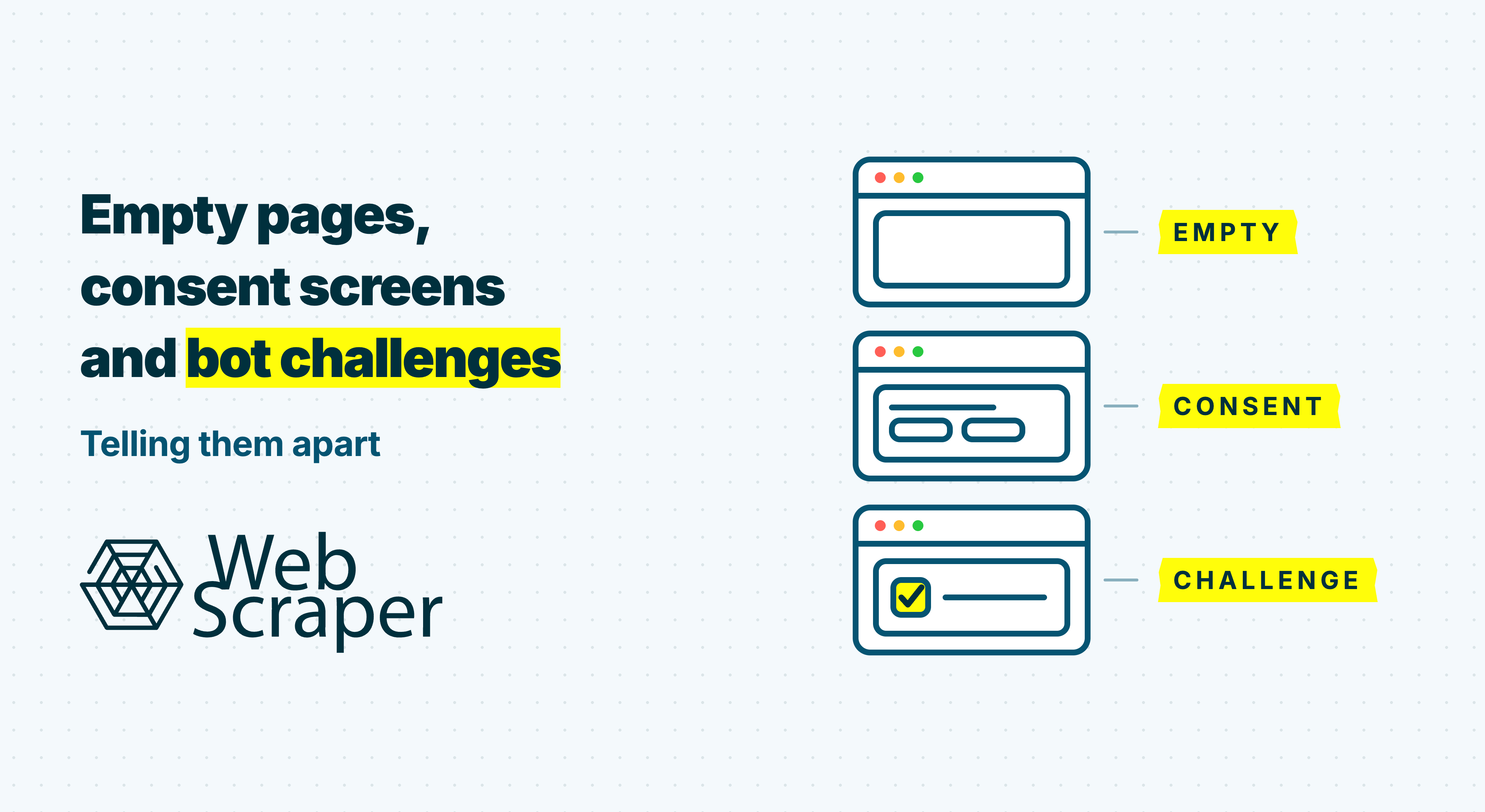
An empty scraping result does not necessarily mean that the browser received an empty page. The requested page may legitimately contain no records, the expected content may still be loading, a consent state may withhold it, a bot challenge may have replaced it or the configured selectors may not match it. In Web Scraper Cloud, an empty page means that the page loaded successfully but the configured selectors extracted no data.
In short: Similar screenshots can require entirely different fixes. Check the response, the rendered page and one controlled transition. The decisive question is not what the screenshot resembles, but what evidence explains the missing data.
Start with evidence, not appearance
A screenshot cannot show whether data exists underneath an overlay, a background request returned the wrong response or a selector matched anything. It also misses protection with no visible interface. reCAPTCHA v3 returns a risk score without user interaction, while Cloudflare Turnstile can run in managed, non-interactive and invisible modes.
Status codes are also incomplete. 204 is content-free, while 200 may contain a shell, zero-state template or unexpected page, and 403 has several possible causes. Treat each signal as evidence, not an explanation.
Use three layers of evidence:
- The response: What did the main document and its Fetch/XHR requests return?
- The rendered page: What exists in the live Document Object Model (DOM) after JavaScript has run?
- The transition: What changes after a bounded wait or legitimate page-state choice?
| State | Target content | Strongest signals | Best confirmation |
|---|---|---|---|
| Genuine empty page | Correctly absent | Expected URL and template, with a site-specific zero state | It remains empty while a known-good URL contains records |
| Rendering or extraction failure | Late, missing after an application failure or outside the selector | Application shell, failed data request or zero matches in a populated DOM | Response, live DOM, request trace and selector match count |
| Consent screen | Obscured, withheld or replaced | Choice-oriented controls, consent markup or a route change | A choice produces a DOM, network or navigation transition |
| Bot challenge | Usually replaced or withheld | Verification content, unexpected HTML or a documented provider marker | The intended document or data response was intercepted |
Record login walls, paywalls, maintenance pages, regional restrictions and upstream errors as separate states.
What an empty page can actually mean
The page legitimately contains no records
A genuine empty page is valid but contains no records. Examples include an empty category, zero-result search, removed listing or pagination URL beyond the available records.
Look for an expected final URL, intact site template and recognisable no-results component. The same URL should produce the same result in a normal browser.
Run a known-good URL containing target records as a positive control. If it is also empty, suspect rendering or extraction. Genuine empty pages normally correlate with categories, filters or item states, not an arbitrary point in a job.
The response contains no useful document
A 204 No Content response has no body. Other statuses can return minimal content because of an application problem, incorrect URL, redirect path or temporary condition.
Record the main document's status, content type, body, final URL and redirect chain. A white screenshot with an empty body is strong evidence. One with HTML and scripts is not.
The browser received an application shell
Many JavaScript applications return an application shell containing a root element and scripts. Target records arrive later through background requests.
Page-load and network-idle conditions do not prove that extractable content exists. Wait for the specific product card, price, result row or other required element.
If a bounded delay reveals the target, configure an appropriate delay and validate the populated page. If its request fails or never starts, waiting will not help. See How JavaScript-rendered content affects web scraping.
The target request failed
The main HTML can load while its data request fails. In Fetch/XHR, look for a pending request; 401, 403, 429 or 5xx; an unexpected content type; HTML instead of JSON; or a related console error. This places the problem upstream of the selector. See 200 OK responses with no data.
The content loaded, but the selectors did not match
Compare the returned HTML with the live DOM. If the content exists there, test the exact extraction selector. A populated DOM with zero matches indicates a sitemap or selector-scope problem, not an empty document.
Also distinguish an empty page from a no-value page. Web Scraper Cloud uses the latter when elements matched but their extracted values were empty. Check the selected element, attribute or output configuration.
How to recognise a consent screen
A consent screen asks the visitor to make a choice. It may cover, withhold or replace the target page.
| Consent format | What happens | Diagnostic clue |
|---|---|---|
| Overlay | Content remains behind a modal | Target selectors may match while interactions fail |
| Replacement screen | A consent document replaces the target | Target structure is absent, sometimes without a URL change |
| Redirected flow | The browser moves through a consent path or hostname | The final URL or redirect chain changes |
| Iframe | The consent interface loads inside an embedded frame | It is visible in the screenshot but absent from the main document's HTML |
Record the requested URL, final URL and redirect chain alongside the screenshot and DOM. JavaScript navigation may also change the route.
Some consent-management platforms (CMPs) prevent scripts, iframes and images from loading until a choice is made. Cookiebot documents an auto-blocking mode that modifies elements so they cannot load until permitted.
Content may be obscured or its resources disabled. Compare the Network panel before and after the choice. New requests or activated elements show that consent affected more than visibility.
Useful consent signals
Look for a combination of:
- a choice-oriented dialog and preference controls;
role="dialog",role="alertdialog"oraria-modal="true";- consent-management scripts, iframes or vendor-specific element names;
- the IAB Transparency and Consent Framework (TCF)
__tcfapifunction or an iframe named__tcfapiLocator; - a DOM, network or navigation transition after a choice.
No signal is universal. The IAB CMP API defines __tcfapi and __tcfapiLocator, but their presence proves only that a compatible CMP is installed. The API may remain available when no banner is open.
Modal markup is generic. Newsletter prompts, age gates and login walls can use the same semantics. Require controls and a resulting state concerned with consent.
If a choice is required, do not click any button containing “accept”. Use a specific selector and act only when the expected post-choice element is absent. Web Scraper's Website State Setup supports conditional actions based on selector presence.
How to recognise a bot challenge
A full-page bot challenge intercepts and replaces the expected document or data response. It may show a checkbox, puzzle, spinner or verification message, or run without meaningful interaction.
Check the response for direct markers
Cloudflare documents a cf-mitigated: challenge response header. It also states that a challenged response has the content type text/html, regardless of the resource originally requested.
AWS WAF documents the following responses:
x-amzn-waf-action: challengewith HTTP202;x-amzn-waf-action: captchawith HTTP405;- an HTML interstitial when the request indicates that it accepts HTML.
See the AWS WAF CAPTCHA and Challenge documentation. Browser JavaScript may be unable to read the AWS header across origins, so inspect it in the Network panel rather than relying on page code.
There is no universal challenge header. Without one, combine the unexpected body, security scripts or hosts, missing target content and verification transition.
Inspect data requests, not only the main document
A challenge can intercept Fetch/XHR while leaving the application shell visible. If code expects JSON but receives challenge HTML, it may leave an empty list.
The response, not the screenshot, identifies the challenged request.
Look for patterns across the job
Genuine empty pages correlate with the content model. Challenges can correlate with request conditions or batch position. Check whether later, unrelated URLs return the same title, response size, body or screenshot.
For example, the first 18 URLs in a 50-URL job return distinct products. The remaining 32 return 200 OK, the same title and response size, and the same verification screenshot. The repeated document and sequence identify a challenge pattern, not 32 genuine empty pages.
Separate challenges from hard blocks
A challenge offers a verification transition, even when silent. A hard block denies access. Rate limits and security blocks often use 403 or 429, but those codes are not unique to bot protection.
If there is only an access-denied message and no verification path, classify it as a block. See Why websites block scrapers.
A CAPTCHA component does not prove the page was challenged
Turnstile, hCaptcha and reCAPTCHA can protect one form while the page remains available. A CAPTCHA script or iframe proves only that bot-control tooling is present. Classify a page challenge only when it replaces the destination or gates navigation. Challenge-related cookies describe session state, not necessarily the current response.
A structured diagnostic sequence
1. Confirm the job result and positive control
Check whether Web Scraper classified the URL as failed, empty or no value. In the Inspect view, note the screenshot and unexpected template. Run one known-good URL alone to confirm that the target state can be extracted.
2. Inspect the main response
Record the status, final URL, redirects, content type, headers, body size, title and meaningful text. A 204 is content-free; a small 200 with scripts may be a shell.
3. Inspect the live DOM
Find the target element and test the exact selector. Determine whether content is late, hidden or in another selector context.
4. Trace the content request
Inspect the target Fetch/XHR request's status, content type and body, then check related console errors.
5. Match positive page-state markers
Define positive markers instead of treating zero target-selector matches as the complete diagnosis.
| Marker type | Example marker |
|---|---|
| Target page | Product title, item container or canonical page heading |
| Genuine zero state | Site-specific no-results component |
| Consent state | Consent dialog, preference controls or known CMP frame |
| Challenge state | Challenge heading, provider path, CAPTCHA frame or provider-specific header |
| Other state | Login form, maintenance notice, regional restriction or deleted-item page |
Anything matching none of these states remains unknown and triggers inspection. Do not force it into the nearest category. Combine text with structure, URL and response evidence.
6. Test one controlled transition
Wait for the target element, make the site's consent choice, or reload with a clean session. Change only one variable and record the result. One browser load does not prove that a scheduled job will behave identically.
7. Validate the diagnosis across a sample
Sample successful, empty and failed URLs from the start, middle and end. Group them by final URL, response size, title and body hash. Identical documents across unrelated URLs indicate a replacement state.
8. Classify before editing the sitemap
Do not change several settings at once. First decide whether the evidence points to a genuine zero state, late content, selector mismatch, consent-dependent state, bot challenge, hard block or an unknown response.
What to change after classification
| Diagnosis | Confirm with | Appropriate next step | What will not fix it |
|---|---|---|---|
| Genuine empty page | Expected URL and template, recognised zero state and a working positive control | Keep it as a valid outcome or exclude it with a defined content rule | Treating every zero-record page as a technical failure |
| True empty response or wrong route | Empty or minimal body and no target request | Verify the URL, redirect chain and expected response | Rebuilding selectors against an empty document |
| Delayed JavaScript content | Target element appears after a bounded wait | Use the FullJS browser driver, set an appropriate delay and validate the populated state | Increasing delays when the data request fails |
| Selector or template mismatch | Target exists in the live DOM but the selector match count is zero | Repair selectors and test several page templates | Proxy changes or repeated retries |
| Consent-dependent state | A choice produces a clear DOM or network transition | Configure a specific, permitted and conditional state-setting action | A universal “accept” text selector |
| Bot challenge | Intended resource is replaced or a documented marker is present | Review whether the access method, permissions and collection pattern are appropriate and reliable | Treating it as a selector problem or assuming browser execution is a bypass |
| Hard block or rate limit | Access is denied without a verification transition | Reconsider the request rate or authorised access route | Waiting for a choice that the response does not provide |
| Unknown state | No defined positive marker matches | Preserve the evidence, inspect the response and define a new state only when supported | Guessing from appearance or the missing target selector |
Once stable, use data quality control to monitor maximum empty-page and failed-page percentages, minimum record count and field population. Add known-good URLs as continuous canaries, and alert on sudden shifts in response size or page-state distribution.
Diagnose page states before they become missing datasets
Run a small test job in Web Scraper Cloud, inspect the returned page state and confirm whether the result represents valid absence, loading, consent, extraction or access before scaling the scrape. Browser execution, job screenshots and data quality controls help turn that diagnosis into a repeatable workflow.
Frequently asked questions
Can a bot challenge return 200 OK?
Yes. It may describe successful delivery of a replacement document. Inspect the body, headers and final URL.
Does 403 always mean the scraper was blocked by bot protection?
No. The reason may be an authorisation rule, hard block or provider-specific response.
Can a consent banner make the rest of a page look empty?
Yes. It may cover content or prevent its resources from loading.
Is a CAPTCHA iframe proof that the whole page was challenged?
No. It may protect one form while the page remains available.
Why does a page work in my browser but return no data in a scraping job?
The sessions may differ in state, location, timing, request pattern or browser execution. Compare their responses and rendered DOMs.
Will increasing the page-load delay fix an empty page?
Only when content is genuinely late. It will not repair another page state or a changed selector.
Should challenge detection rely on page text?
No. Combine it with structure, headers, final URL and behaviour across requests.
Why do only some URLs receive a challenge?
Protection can depend on route, rate, concurrency, IP reputation, region and session history. Check job position and repeated documents.