How to scrape a website using its XML sitemap
October 04, 2026
Web Scraper Cloud, data quality, Web scraping tutorials, product data, XML sitemaps
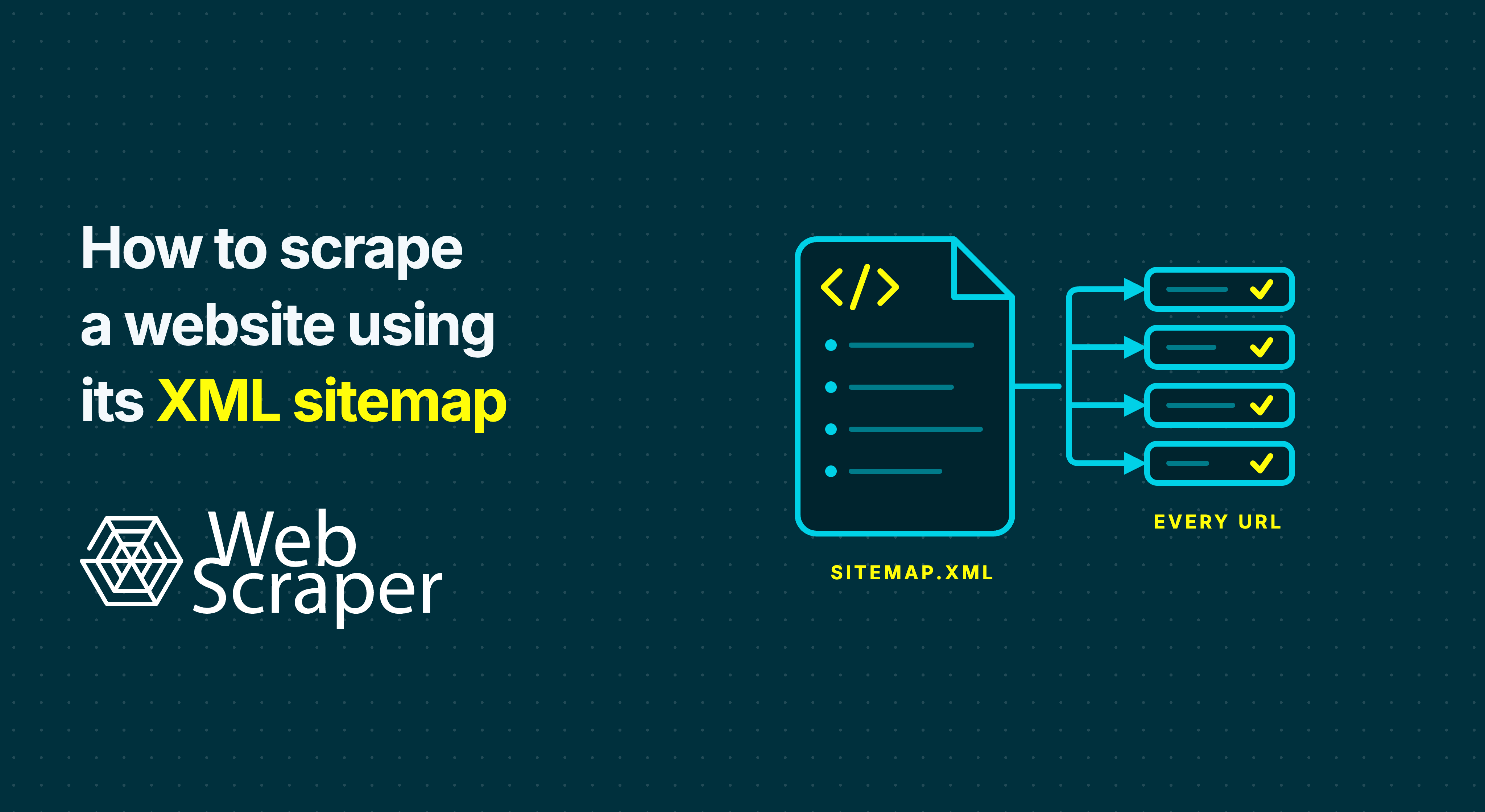
To scrape a website using its XML sitemap, use the published URLs to find the pages you need, then extract data from those pages. In Web Scraper, the Sitemap.xml Link selector handles URL discovery and navigation, while child selectors collect fields such as product names, prices and SKUs.
For a product catalogue, this can save you from building navigation through categories and pagination. The workflow below uses an illustrative shop to show how to configure the scraper, check the resulting records and automate a validated setup.
What an XML sitemap gives you
Two different things are called a sitemap in this workflow:
| Term | What it contains | Purpose |
|---|---|---|
| Website XML sitemap | Page addresses, or links to other sitemap files | Supplies URLs to visit |
| Web Scraper sitemap | Start URLs and navigation and extraction selectors | Defines how to collect the dataset |
You create a Web Scraper sitemap that reads the website's XML sitemap. Finding the product URLs is the discovery step; extracting the product fields still requires selectors for the destination pages.
Define what one output row should represent before configuring anything. This example collects one record per product page. If you need a record for every size, colour or seller offer, you may also need navigation or interactions within each product page.
1. Find and inspect the website's XML sitemap
Open the website's robots.txt, for example https://shop.example.com/robots.txt, and look for a declaration such as:
Sitemap: https://shop.example.com/sitemap_index.xmlIf none is declared, check likely locations such as /sitemap.xml or /sitemap_index.xml. These are possible locations, not guaranteed addresses.
A regular XML sitemap contains page URLs inside <loc> elements:
<?xml version="1.0" encoding="UTF-8"?>
<urlset xmlns="http://www.sitemaps.org/schemas/sitemap/0.9">
  <url>
    <loc>https://shop.example.com/products/trail-shoe</loc>
  </url>
</urlset>
A sitemap index starts with <sitemapindex> and points to child sitemap files. Inspect those children to understand their scope. A product-only sitemap may be a better input than an index containing products, articles and category pages. The Sitemaps protocol defines these structures.
Before proceeding, compare several known product URLs with the published list. Include different categories and page layouts. Google recommends that publishers include URLs they want represented in search results, which may differ from the pages or variants your business dataset requires. Check that scope explicitly.
If important pages are absent, use another discovery route for them, such as listing-page navigation or a known URL list. A successful scrape of the published sitemap alone cannot establish complete coverage of the website.
2. Configure the Sitemap.xml Link selector
Install the free Web Scraper browser extension, open the website and open Developer Tools. In the Web Scraper tab, select Create sitemap, enter a name and use the website homepage as the start URL. The Advanced Sitemap Builder gives you control over the selector structure.
Create a Sitemap.xml Link selector beneath _root:
| Setting | Illustrative value |
|---|---|
| Start URL | https://shop.example.com/ |
| Selector ID | product_pages |
| Selector type | Sitemap.xml Link |
| Parent selector | _root |
| Sitemap URLs | The verified product sitemap or sitemap index address |
| URL regular expression | A filter for the required page addresses, if needed |
You can add sitemap locations directly or discover declarations from robots.txt. The selector supports standard XML sitemaps, compressed .xml.gz files and sitemap indexes referencing child sitemaps.
Keep the XML address in the selector's settings. The website homepage remains the start URL in this workflow. The XML supplies the destination URLs; the extraction fields will run on those destination pages.
3. Filter the URLs you want to scrape
Start with actual URLs from the XML. Do not assume every website uses the same product path.
For this example, product pages have one slug immediately after /products/. Enter this in URL regular expression:
^https://shop\.example\.com/products/[^/?#]+/?$The pattern fixes the hostname, requires a product slug and allows an optional trailing slash:
| Example URL | Included? |
|---|---|
https://shop.example.com/products/trail-shoe | Yes |
https://shop.example.com/products/trail-shoe/ | Yes |
https://shop.example.com/collections/shoes | No |
https://shop.example.com/products/ | No |
https://shop.example.com/products/trail-shoe?variant=blue | No |
https://shop.example.com/products/shoes/trail-shoe | No |
This is deliberately a narrow example. Adapt it if the real website uses query parameters, locale prefixes, deeper paths or another hostname. If query parameters identify required variants, excluding them would remove relevant URLs.
Test known valid and invalid addresses before running the scraper. Also check that relevant pages are present in the chosen XML source: a correct filter cannot recover a URL that is missing from it.
4. Extract data from the destination pages
Navigate into product_pages in the selector tree. Open a representative product page and create its field selectors there.
For a page containing one product, an illustrative setup is:
| Selector ID | Type | Example CSS | Parent selector |
|---|---|---|---|
name | Text | h1.product-title | product_pages |
price_raw | Text | .product-main .current-price | product_pages |
sku | Text | .product-main .sku | product_pages |
Replace these CSS examples with selectors that match the actual website. For a single-value Text field, use Multiple type → First Record Only. Check the Text selector documentation for other output modes.
The parent relationships determine where extraction happens. Fields beneath product_pages run on the product destinations. Fields attached directly to _root run on the start page.
Check the meaning of each value as well as its presence. A broad price selector may match an old price or a recommended product. Preserve the raw price and its currency context before applying transformations.
Keep a reliable product identifier where available. If you also need the destination URL, verify how it appears in the actual export. A system field containing the start URL identifies the homepage here, so it should not be used as the product's address.
When URLs do not distinguish page types
An optional Element wrapper can check the destination page's structure. For a site where every product page contains h1.product-title, an illustrative wrapper is:
body:has(h1.product-title)Create that Element selector beneath product_pages, name it product_page, then move the field selectors beneath it:
| Selector | Parent |
|---|---|
product_pages | _root |
product_page | product_pages |
name, price_raw, sku | product_page |
Choose a marker present on all valid products and absent from other page types. An optional or late-rendered marker can exclude valid pages. This wrapper filters extraction after navigation; non-matching pages can appear as Empty pages in Cloud. Use a reliable URL filter when one is available. The XML sitemap workflow guide explains the wrapper pattern.
5. Run a small scrape and validate the export
Temporarily restrict the URL filter to a few known products, or choose a small relevant child sitemap. One homepage start URL can still discover a large catalogue, so the number of start URLs does not bound this test.
Use Element Preview and Data Preview to check matches and extracted values across representative pages. Then run a small actual job.
For a local scrape, select Scrape, configure the request interval and page load delay, and keep the scraping window open until the job finishes. Export the result as CSV and inspect the file.
Check these separately:
- Coverage: did the intended test pages produce the expected product records?
- Identity: are product identifiers present and unique at the level your dataset requires?
- Values: do names, current prices and currencies match the corresponding products?
- Exceptions: do sale items, unavailable products and missing optional fields behave correctly?
- Duplicates: are variants, redirects or regional pages creating repeated records?
For a test designed to return one record per product page, reconcile the distinct accepted URLs with distinct product identities and populated records. Matching totals alone are insufficient: the scraper could repeatedly collect a recommended product and still return the expected number of rows.
Once the small test is correct, restore the intended production source and URL filter. Check the full result too; the sample does not establish coverage of every page layout.
6. Automate the validated scraper in Cloud
Sync or import the tested configuration into Web Scraper Cloud. Run a Test scrape with the intended driver, proxy and timing, then inspect the result before launching the full job.
The XML changes how URLs are discovered. Destination pages can still require JavaScript rendering or interactions. Fast driver extracts returned HTML without running page JavaScript; use FullJS when the required workflow depends on JavaScript or browser interactions. Sitemap discovery also does not remove login requirements or access challenges.
After validating the full Cloud result, configure the Schedule tab with the required time zone and frequency. Add automatic data export when completed datasets should be delivered to a destination such as Google Sheets or Amazon S3.
For recurring monitoring, compare saved outputs using reliable identifiers. Investigate a product missing from a later export before labelling it discontinued: the cause could be the XML source, URL filter, page response or extraction. An XML <lastmod> tag alone does not make this a changed-pages-only workflow.
Troubleshoot discovery and extraction separately
| Symptom | First check |
|---|---|
| A known product is missing | Is its URL in the selected XML source, and does it pass the filter? |
| Wrong page types are included | Is the sitemap index too broad, or the URL pattern too loose? |
| Pages open but fields are blank | Check field parents, CSS matches, page type and rendered state. |
| Local and Cloud results differ | Compare driver, timing, proxy location and the returned page. |
| The combined XML input is too large | Divide relevant child sitemap sets between separate scraping configurations. |
In Cloud, Inspect helps review affected URLs and captured page information where available. Confirm what the scraper received before changing selectors.
Ready to run your validated scraper on a schedule?