Executing actions during web scraping: a practical guide
September 28, 2026
dynamic web scraping, Web Scraper selectors, data quality, Browser actions, Pagination
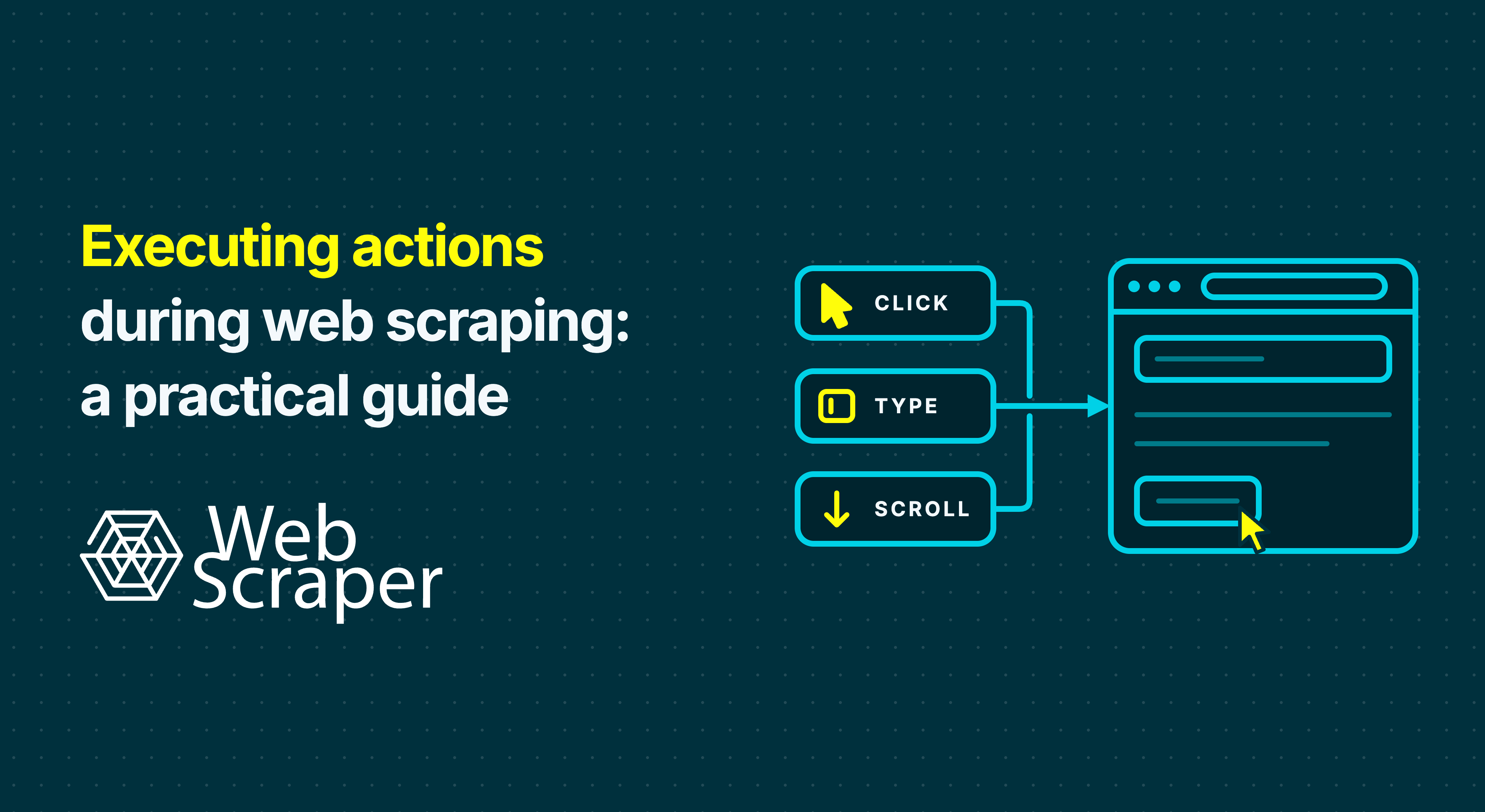
A page can load successfully and still show the wrong data. A product price may depend on the selected size, a directory may need a location, and a job board may reveal more listings only after a click. Executing actions during web scraping means reproducing the steps that create the specific page state your dataset requires.
The useful sequence is action → expected state → readiness → extraction → record check. A click that succeeds without producing the intended records is not a successful scraping step.
First, check whether an action is necessary
The same URL can expose three useful states:
- Initial HTML: The response already contains the required values and links. Extract them directly.
- Rendered page: JavaScript creates the values after loading, without a user action.
- Interaction-dependent page: A click, scroll, selection or input changes the values or reveals additional records.
Do not assume a visible tab needs a click. Some sites include all tab content in the original page and only change which part is displayed. In Web Scraper, identify the value after clicking manually, reload the page, then run Data preview on the value selector before adding an action. If the value is already available, the extra click adds time and another possible failure. The guide to tabs, buttons and product variants shows this test.
Check ordinary links, too. If a listing card exposes a detail-page URL, follow that link instead of simulating a click on the card. If a search form produces a stable results URL, test whether that URL can be used directly as a start page on future runs. When input and submission really are required, verify the resulting query or results heading; text appearing in the input field does not prove that the search ran.
Define one output row before designing the actions. “Collect prices” could mean one row per product, per delivery region, or per product-size combination. If selecting a size changes the SKU, stock status or price, store that selection with the extracted value. Otherwise a plausible price may belong to the wrong item.
Give each action a specific job
The control's appearance does not tell you what the scraper should do. A button may navigate to a new page, append records, reveal a field or change an existing value.
| Required change | Example | Web Scraper approach | Check after the action |
|---|---|---|---|
| Establish a page-wide state | Set a delivery location or currency | Conditional Website State Setup | The active setting matches the target |
| Traverse another page or batch | Next or Load more | Pagination selector | New listing IDs or detail URLs appear |
| Append records by moving the page | Infinite scroll | Scroll on the repeated Element selector | Later, distinct records appear |
| Change a field within a record | Size, tab or accordion | Element Click selector | The field belongs to the selected state |
| Open a linked detail page | Product or property URL | Link selector | The intended detail page and fields load |
This distinction matters for selector scope. A location setting belongs to the page state; a size click belongs to a product; Load more traverses the result list. Applying a product action to the whole page can pair one product's variant with another product's price. Treating Load more as a one-off field reveal can leave later batches unvisited.
Website State Setup supports a defined preliminary sequence of Open URL, Click, Text Input and Password Input actions. It runs conditionally when a selector proving the desired state is absent. That makes it useful for setting a location before extraction, but it is not a general promise that any changing form workflow will work. Use sign-in automation only when the site terms permit the collection or you have explicit written permission. The Website State Setup documentation explains its condition and available actions.
Build the actions in the order the data becomes valid
Suppose a retailer's category page initially shows a default region, a Load more button adds products, and sizes on product pages change availability. You want a recurring dataset for one delivery city.
- Set the region. Identify an element that proves the intended city is active. Perform the setup only when that element is missing. On a test page, confirm that the selected city and currency are the ones the dataset requires.
- Traverse the category. Use the repeated product-card wrapper to keep listing fields together. If Load more appends cards, continue until the control disappears or no new records are added. If scrolling triggers the new cards instead, scroll the wrapper and define a sensible dataset boundary. Confirm that a later batch contains new product IDs or URLs.
- Follow detail links. Keep the product ID or canonical detail URL with each record. A category-card price may be a starting price rather than the price of the selected size.
- Select the relevant variants. Extract availability and price in the context of each selected size, and keep size, region and currency in the row. Check whether the initial state is a valid row or a duplicate of a clicked variant. Test unavailable sizes and whether choosing one option resets another.
- Inspect the output. Check the first and a later listing batch, products with and without variants, and the last intended batch. Compare unique product-and-variant keys, required fields and a sample of live values. A finished job alone cannot confirm any of these relationships.
This is a hypothetical workflow, not a claim about a particular retailer. Its key is the dependency: set the region before collecting listings; traverse listings before following product links; select a variant before reading its variant-specific values. In a Web Scraper sitemap, place dependent selectors in the correct parent context and execution order. The sitemap and selector tree reference explains how those relationships affect the output.
Verify the result before extracting
An interaction can complete while the site is still fetching its response. Extracting immediately may capture a loading placeholder, the previous variant's price or the same listing batch twice. A useful postcondition is connected to the dataset: the location label changes, a new unique listing ID appears, or the selected size and displayed stock status agree.
For custom browser code, you can wait for that observable change with a timeout. Web Scraper's sitemap workflow uses Data preview and configured page-load or interaction delays: test the dependent value after the action and adjust the relevant delay when it genuinely arrives later. Do not mistake this for an arbitrary condition-based wait built into the sitemap. A longer global delay cannot repair the wrong selector, a button that stopped working or an access-denied page.
Repeated actions also need a stopping rule. A Next selector that works on page one may accidentally match Previous on page two. The Pagination selector documentation recommends testing the selector on a later page and placing listing selectors beneath it. A Load more run should produce new records on successive clicks and stop when no more are added. For scrolling, check unique IDs and use an element limit when the task calls for a defined sample; the Element selector documentation covers its Scroll setting.
Decide the business boundary as well as the interface boundary. “Until the button disappears” may collect much more history than you need; “listings posted since the last run” or a defined sample may be more useful. Conversely, page height changing or a spinner disappearing is not evidence that every required record was collected.
Configure and test the sitemap in Cloud
Build and test the sitemap in the Web Scraper browser extension, then sync or import the tested version into Web Scraper Cloud. Use the Element Click selector for values revealed or changed within a record, and place dependent fields beneath it when each clicked state needs its own row. Use a Link selector for available detail-page URLs. The action table above separates these cases from pagination, scrolling and page-wide setup.
Choose the Cloud driver from the sitemap's requirements. Fast extracts returned HTML without executing page JavaScript. Scrolling, Element Click, Website State Setup, click-based pagination and script-derived pagination links require the FullJS browser driver. Test a small Cloud run with the same settings you intend to schedule. A local preview does not guarantee that Cloud sees the same region, session state, consent screen or response. The Cloud workflow documentation describes the driver and test sequence.
Browser actions add processing time and points of failure. If an action does not produce a required record or field, remove it. If only some pages need interaction, consider separate sitemaps or jobs for the HTML-only and browser-dependent work, then validate that the resulting datasets join correctly. Neither FullJS nor a proxy guarantees access to a site's intended content.
Diagnose the first failed state
When a run differs from the local test, find the first action whose expected result is missing. Increasing all delays obscures the cause.
| Symptom | Check first |
|---|---|
| The click control is missing | Inspect the returned page for a changed layout, wrong location, consent screen or access challenge; then check the selector. |
| Only the first batch is present | Confirm whether the page needs Pagination or Scroll, that later items are new, and that Cloud uses FullJS. |
| Fields are blank or stale | Preview them after the action and check record scope, initial-state handling and interaction timing. |
| Variants repeat or values are mixed | Check unique product-variant keys, unavailable options and whether selecting one option resets another. |
| The local run works but Cloud differs | Compare sitemap version, driver, region and the returned page in Cloud's Inspect view. |
Cloud's Inspect view can show failed or empty URLs, reasons and screenshots when available. Website State Setup failure can mark a page as Failed. A page can also yield no values, or return populated but incorrect values that look successful at the job level.
Use Data quality control to flag unexpectedly low record counts, high failed or empty page shares and missing required fields. Those checks do not establish that a populated price belongs to the right size or location. Compare representative rows and stable keys with a known-good run whenever the source or sitemap changes.
The simplest reliable workflow is the shortest sequence that produces the specified dataset and passes those record checks. Build it on representative pages, verify later states, then schedule the tested Cloud sitemap and monitor the data as well as the job status.
Try it with Web Scraper: Build a sitemap in the browser extension for one initial page, one later batch and one unusual record. After checking the rows, run that sitemap in Cloud with FullJS if it requires interactions.